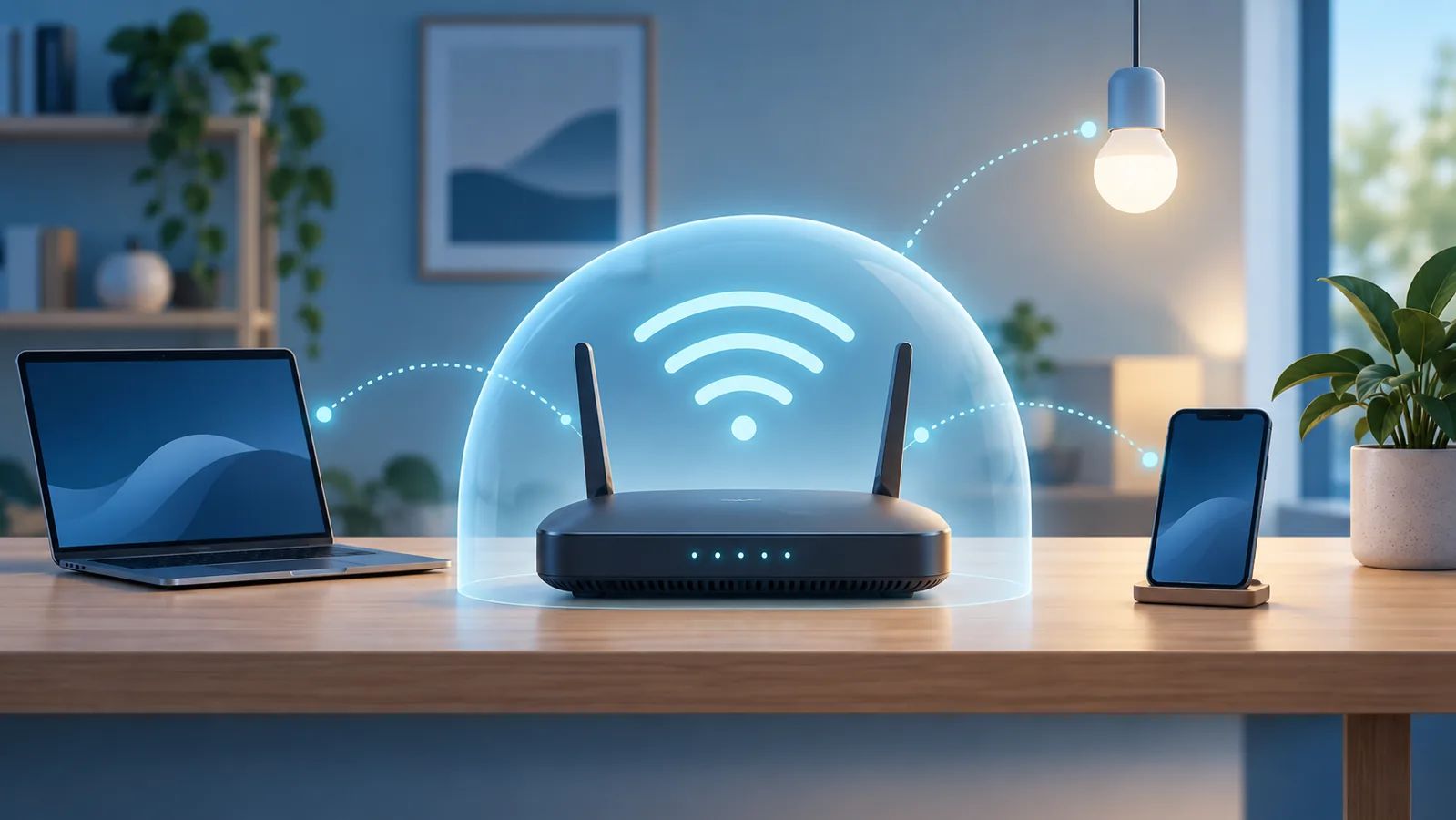
Start with a boundary: router menus and internet-provider equipment vary. If the router is managed by your employer, landlord, or internet provider—or changing it could interrupt medical, security, or work systems—contact the legitimate administrator before changing unfamiliar settings. Use the router maker’s official manual or support site rather than a link from an unsolicited message.
The short checklist
- Install current router firmware.
- Use WPA3 Personal, or WPA2 Personal with AES if WPA3 is unavailable.
- Use different, strong passwords for router administration and Wi-Fi access.
- Choose a network name that does not reveal personal details.
- Turn off remote administration unless you need it.
- Disable Wi-Fi Protected Setup (WPS).
- Review connected devices and retire obsolete equipment.
1. Update the router’s firmware
Router firmware is the software that runs the device. The Federal Trade Commission recommends checking for router updates, and the Cybersecurity and Infrastructure Security Agency notes that some routers offer automatic updates. Updates can correct security weaknesses and reliability problems.
- Find the exact model number on the router label or in its administration page.
- Use the manufacturer’s official app, administration page, or support site to check the installed and current versions.
- Enable automatic security updates if the manufacturer supports them and you are comfortable with the maintenance behavior.
- Do not interrupt power during a firmware installation.
If the vendor no longer provides updates, plan to replace the router rather than relying on an unsupported device indefinitely.
2. Use WPA3 Personal, or WPA2 Personal with AES
Choose WPA3 Personal when all important devices support it. If they do not, the FTC recommends WPA2 Personal; CISA specifies WPA2 with AES as the fallback. Avoid WEP, original WPA, and WPA2 options labeled TKIP. Those older modes do not provide current protection.
Some routers offer a WPA2/WPA3 transition mode for mixed devices. That can preserve compatibility while newer devices use WPA3, but menu labels and behavior differ by model. Confirm the setting in the official documentation.
If an updated router offers only WEP or original WPA, the FTC advises considering replacement.
3. Separate the admin password from the Wi-Fi password
Two different credentials protect two different things:
- The administrator password controls router settings. Replace any default credential with a unique password that you do not use for email, banking, or other accounts.
- The Wi-Fi password lets devices join the network. Make it long, unique, and difficult to guess.
Do not put either password in the network name. If the router supports more than one administrator account, remove accounts you do not recognize and avoid sharing administrator access when ordinary Wi-Fi access is sufficient.
If you reuse either password elsewhere, change the reused accounts too. For broader sign-in guidance, see the account security checklist.
4. Choose a neutral network name
The network name, or SSID, is normally visible nearby. Use a name that does not reveal your surname, apartment number, router model, or other personal details. Hiding the network name is not a substitute for encryption and a strong password; authorized devices still need to identify and connect to the network.
5. Turn off remote administration unless you need it
Remote administration lets someone reach the router’s settings from outside the home network. CISA recommends disabling remote management. If you have a documented reason to keep it on, follow the manufacturer’s instructions, restrict access where possible, and protect the administrator account with the strongest authentication the router supports.
This is different from an internet provider managing provider-owned equipment. If you are unsure which feature you are seeing, ask the provider using a phone number or website you independently verify.
6. Disable WPS
Wi-Fi Protected Setup was designed to make device enrollment easier, often through a push button or PIN. CISA recommends turning WPS off. Pair devices by selecting the network and entering the Wi-Fi password instead.
7. Review connected devices and create separation where useful
Check the router’s connected-device list and investigate names you do not recognize. A device name alone is not proof of an intruder—products may appear under a manufacturer name or an unhelpful identifier—so compare hardware addresses or temporarily disconnect your own devices before blocking one.
If the router offers a guest network, it can keep visitors’ devices separate from your primary devices. Some routers also offer an isolated network for smart-home products. Confirm whether the feature actually isolates devices; implementations vary.
Remove or replace connected products that no longer receive security updates. Update computers and phones too, because router settings cannot compensate for an unpatched device or a stolen account.
After you make changes
- Reconnect your devices and confirm that websites and essential services work.
- Store the administrator and Wi-Fi passwords in a trusted password manager or another secure record.
- Write down the router model, firmware version, and the date you checked it.
- Set a reminder to review firmware and connected devices periodically if automatic updates are unavailable.
If a suspicious caller or pop-up told you to change router settings, stop and verify the request independently. Use the phishing message checklist for suspicious links and the remote-access scam response guide if someone controlled a computer or watched you sign in.
What this checklist cannot do
Safer router settings reduce exposure, but they do not prevent every scam, compromised password, malicious download, or device flaw. Network security works alongside current device software, unique account passwords, multifactor authentication, careful message verification, and reliable backups.
Common home Wi-Fi questions
Does a new Wi-Fi password also change the administrator password?
These are usually separate settings. The Wi-Fi password controls joining the network; the administrator password controls changing the router. Check both settings in the manufacturer’s instructions. If you update the Wi-Fi password, expect to reconnect devices that were using the old one.
When should I replace a router?
Check the model’s security-update support and available encryption options. The FTC advises considering replacement when a router still cannot offer WPA2 or WPA3 after updating. A replacement decision should follow the device’s capabilities and support status; this guide does not set a universal replacement age.
Authoritative sources
- Federal Trade Commission: How To Secure Your Home Wi-Fi Network
- Cybersecurity and Infrastructure Security Agency: Module 5 — Securing Your Home Wi-Fi
Recommendations were checked against these sources on September 16, 2026. Router capabilities and interface labels vary; consult the manufacturer or legitimate administrator for model-specific instructions.