Guides · Devices & Privacy
How to Use Public Wi-Fi More Safely
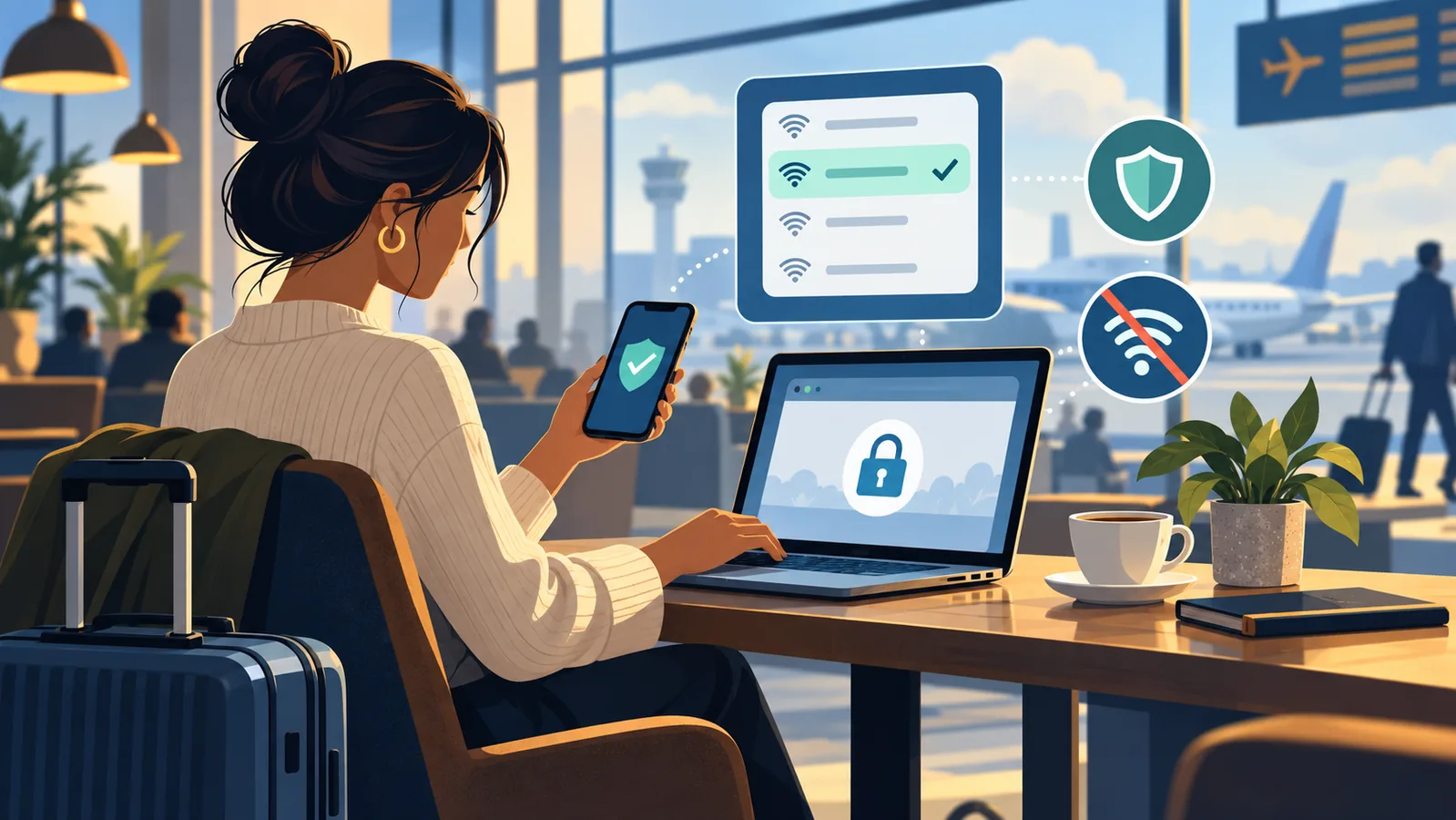
Public Wi-Fi can be convenient without being mysterious. The safest approach is to verify the network, keep the device hardened, check the destination before sharing information, and clean up the connection when you leave.
Start with the right mental model
A Wi-Fi network is only the local path between your device and the internet. It does not prove that a website, app, sign-in page, or download is legitimate. The Federal Trade Commission explains that widespread website encryption makes public Wi-Fi generally safe for ordinary browsing, provided you look for https:// and verify the site address before sending information.
Network verification and website verification solve different problems. A nearby hotspot can use a plausible name, while an encrypted connection can still lead to the wrong domain. Confirm the network you intend to join, then confirm the service you intend to use.
Before you join
1. Ask for the exact network name
Do not choose a network only because its name resembles the café, hotel, airport, or conference. Ask staff, check a posted sign, or use the venue's official material. The Cybersecurity and Infrastructure Security Agency recommends verifying the network name and exact login process with the provider.
2. Install updates before the trip
Update the operating system, browser, security software, and important apps while you are on a trusted connection. Updates often close known vulnerabilities; installing them in advance also avoids a large download on an unfamiliar network.
3. Review sharing and connection settings
Turn off file and printer sharing unless you deliberately need them. Disable settings that automatically join open networks. If your device asks whether the network is public or private, choose the public profile for a café, airport, hotel, or similar shared location.
While you are connected
4. Treat certificate warnings as a stop sign
If a browser warns that a site's certificate is invalid, expired, or issued for another name, do not click through for a sensitive task. Leave the page and try again later on a trusted connection. A captive portal may appear before normal browsing, but it should not require you to dismiss certificate errors for unrelated websites.
5. Check the complete domain before sharing anything
Look beyond the lock icon. Read the registered domain in the address bar before entering a password, payment card, identity document, or recovery code. A password manager that recognizes the correct domain can provide an extra signal when a look-alike site fails to match.
6. Keep account protections turned on
Use a unique password for each important account and enable multifactor authentication where available. Never approve an unexpected sign-in prompt or share a one-time code because a page, message, or caller asks for it. For more detail, see How to Secure Your Email Account.
7. Prefer a personal connection for high-risk changes
If practical, use your cellular connection or wait for a trusted network before changing a financial password, recovering your primary email account, uploading identity documents, or administering business systems. This is a risk-reduction choice, not a claim that every public network is compromised.
8. A VPN helps with one layer, not every threat
A reputable VPN can encrypt traffic between your device and the VPN provider, which may reduce exposure on the local network. It cannot make a fraudulent website legitimate, identify a malicious attachment, or protect information you voluntarily send to a scammer. Keep checking domains and prompts even when a VPN is active.
When you finish
9. Disconnect and forget the network
Disconnect when you no longer need the hotspot. Remove or “forget” it from saved networks if your device might reconnect automatically later. Re-enable sharing only when you return to a network you control.
10. Respond to anything that looked wrong
If you entered credentials on a suspicious page, change the password from a trusted device and network, sign out other sessions when the service offers that option, and review recent activity. If the same password was reused, change it everywhere it appears. If you approved an unexpected authentication prompt, contact the service through its official app or website. Our phishing message checklist can help you evaluate a suspicious follow-up.
Three public Wi-Fi myths to avoid
- “Any password-protected hotspot is safe.”
- A shared venue password controls access; it does not prove that the network belongs to the venue or that every connected device is trustworthy.
- “HTTPS means the website itself is legitimate.”
- HTTPS protects the connection to the domain shown. You still need to verify that the domain belongs to the service you intended to visit.
- “A VPN makes risky clicks harmless.”
- A VPN can protect traffic in transit, but it cannot validate a fraudulent page or undo information you send to it.
Sources and review note
- Federal Trade Commission: Are public Wi-Fi networks safe? What you need to know
- CISA: Securing Wireless Networks
This guide uses source-backed security guidance and does not evaluate or endorse a particular hotspot, VPN, device, or service. Review source pages for current agency wording.