
Account Security
How to Prepare Your Phone Before Selling or Trading It In
A factory reset is only one part of a safe handoff. Use this sequence to preserve the data you want, detach the old phone from your accounts, erase it through the supported menu and confirm that the next owner can start cleanly.
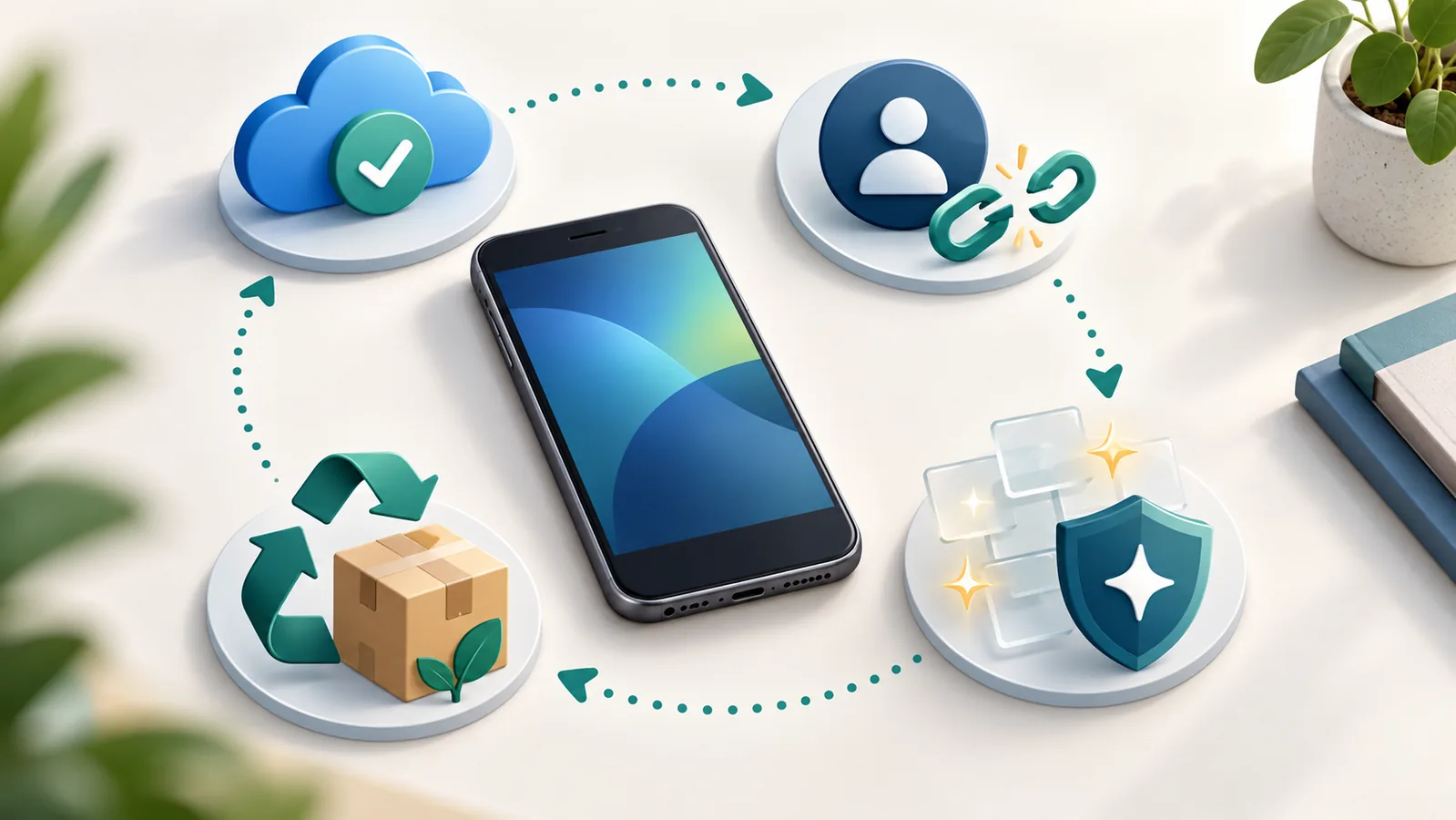
What this guide covers
This is a planned handoff checklist for a phone that is still in your possession. If the device is missing, do not remotely remove it from your Apple or Google account just to prepare it for resale; use the containment steps in our lost or stolen phone response guide instead.
The goal here is narrower than everyday device privacy: leave the old phone with no recoverable local data, no active cellular identity and no account lock that prevents a legitimate new owner from setting it up.
Before-you-sell checklist
1. Back up, then test the backup
Make a current backup using the platform's supported method. Apple recommends backing up before you transfer information or erase an iPhone or iPad; Google documents cloud backup for Android data and settings. A backup icon or timestamp is not the same as a recovery test, so open several recent photos, notes and contacts on the destination device or in the relevant cloud service before erasing anything.
- Confirm recent photos and videos exist somewhere other than the old phone.
- Check contacts, calendars, notes, messages and password-manager access.
- Keep any encrypted-backup password or recovery key where you can retrieve it.
2. Move the things that do not follow an ordinary backup
Transfer your physical SIM or eSIM only when the replacement phone is ready. Review authenticator apps, passkeys, hardware security keys, banking approvals, transit cards and digital wallets individually; some require an in-app transfer or fresh enrollment.
Do not erase the old phone until you have successfully signed in to essential accounts on another trusted device. If the old phone is your only second factor, create and securely store recovery codes first. NIST's current authenticator guidance treats recovery and replacement as account-lifecycle events, not as ordinary file restoration.
3. Unpair accessories and remove the old phone from trusted roles
Unpair watches and other accessories using the manufacturer's workflow so their own backup or lock state can complete. Move any trusted-device or account-recovery role you still need, then check active sessions after the handoff. This is especially important for your primary email account because it can reset many other accounts.
4. Sign out and remove activation protection before erasing
iPhone or iPad: follow Apple's handoff sequence. Sign out of your Apple Account when prompted by the supported erase flow, then use Settings → General → Transfer or Reset → Erase All Content and Settings. Apple says this erases the device and turns off Find My and Activation Lock for the handoff.
Android: remove every Google Account from the old phone in Settings before the reset; Google documents that removing the account turns off device protection. Factory-reset from the Settings app rather than recovery buttons, then let the phone restart to the setup screen. If setup still asks for a previous screen lock or Google Account, stop the handoff and resolve the protection state before giving the phone away.
Do not manually delete synced contacts, photos or notes as a substitute for signing out and erasing. Apple warns that manual deletion while signed into iCloud can remove those items from iCloud and connected devices too.
5. Remove cellular identity and storage
After service is working on the replacement, remove the physical SIM and any removable memory card. For eSIM, confirm the line moved successfully before deleting the old profile. A factory reset is not proof that a carrier transfer completed.
6. Verify the phone as the next owner would see it
Let the erased phone boot to its initial welcome or setup screen. Do not proceed far enough to add a new account. Confirm that it does not open into your home screen or request the old account to clear an activation lock. Then power it down, clean it without entering credentials, and record the serial number or trade-in receipt separately for your records.
Platform-specific final checks
iPhone
- Apple Account signed out through the supported erase flow
- Find My and Activation Lock no longer attached
- Apple Watch and other accessories unpaired
- SIM removed or eSIM transfer confirmed
- Hello/setup screen appears after restart
Android
- All Google Accounts removed before reset
- Reset started from Settings, not recovery mode
- Authenticator and wallet migrations completed
- SIM and removable storage removed
- Setup screen does not demand the previous account
Do not hand over the phone yet if…
- your replacement cannot receive calls, texts or account prompts;
- the only copy of important data is still on the old phone;
- an authenticator, wallet or passkey has not been transferred;
- the setup screen asks for your old Apple or Google credentials;
- you cannot remove a work-management profile; or
- the device is lost, stolen or part of an account-compromise incident.
For a work-managed device, ask the administrator to remove organizational enrollment before handoff. For a missing device, switch to the containment workflow rather than treating it as a normal trade-in.
After the handoff
Keep the sale or trade-in receipt and shipment tracking. Review the security pages for your Apple Account, Google Account and primary email account for unexpected sessions or recovery changes. Google's Security Checkup provides personalized recommendations for Google Accounts; other providers offer comparable session and recovery reviews.
If you discover that an account remained accessible, change that account's password from a trusted device, revoke the old session and review recovery methods. If your phone number stops working unexpectedly during or after the transfer, contact the carrier and follow the escalation steps in our SIM-swap protection guide.
Sources and editorial notes
- Apple Support — What to do before you sell, give away, or trade in your iPhone or iPad
- Google Android Help — Back up or restore data on your Android device
- Google Android Help — Help prevent others from using your device without permission
- NIST SP 800-63B — Authentication and authenticator lifecycle guidance
- Google Account Help — Make your account more secure
This guide summarizes vendor and standards-body instructions available on September 19, 2026. Menu names vary by model, carrier and software version. Digital Safety Desk did not test or rank a trade-in service for this article.